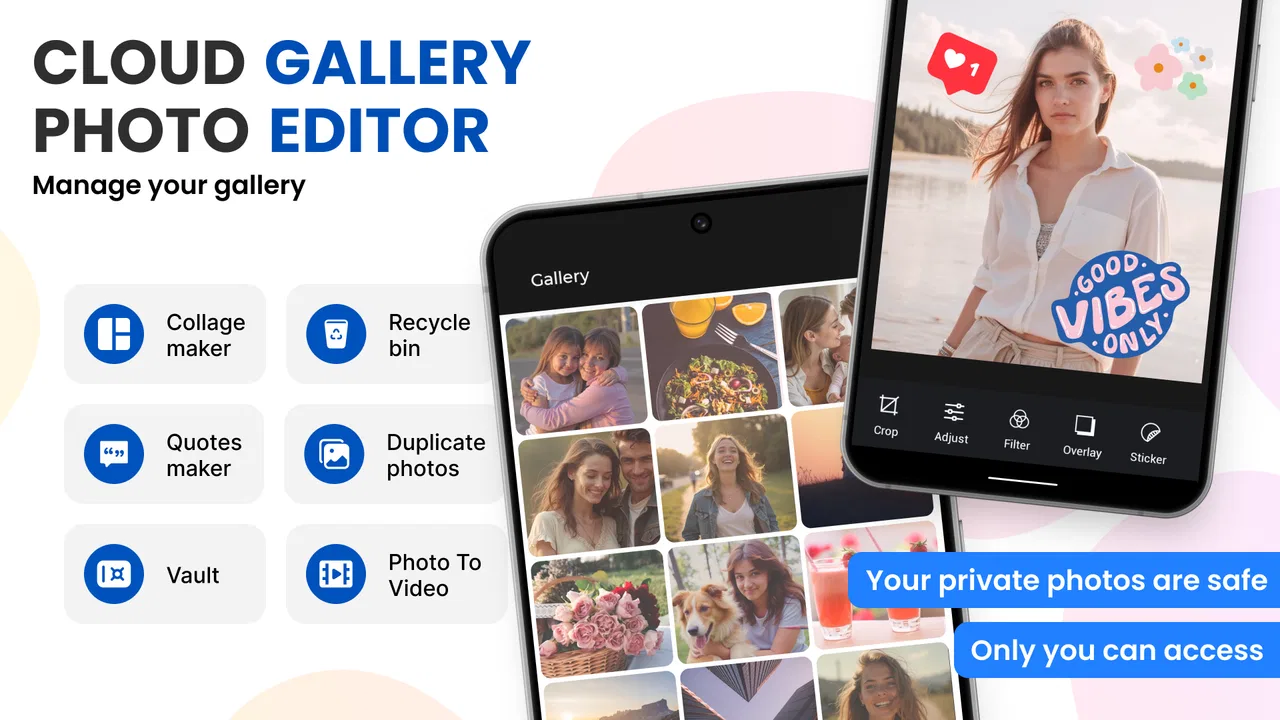
Cloud Gallery - Photo Editor
- 4.7
- Rating
- 1.00M
- Installs
- Free
- Price

 Analysis by App-foxy
I usually judge a gallery app by what happens after the first few minutes: can I find a photo quickly, keep personal media separate, and recover gracefully when something does not appear as expected? Cloud Gallery - Photo Editor is aimed at that everyday problem. It is a photography app from Photo & Video Editors - Instant Solution, presented as a simple gallery with album management, hidden picture and video storage, and cloud backup in the same general workflow.
That combination makes it more practical than a basic camera-roll viewer, but it also means the first experience depends on setting things up carefully. A gallery can feel broken when the real issue is an incomplete backup, an overlooked album, or a system restriction. In my experience, the best way to use Cloud Gallery - Photo Editor is to treat it as an organized media workspace rather than just another app for opening pictures.
Where the first experience can become confusing
The app is free to install and is rated for Everyone, so it is approachable for families, casual photographers, and people who simply want a cleaner place for their pictures. It runs on Android 8.0 or later, which gives it a fairly broad reach. Its current version is 3.0.3, and the app has passed the one-million-install mark with a 4.7 average from around eleven thousand ratings. Those figures suggest a well-established audience, but they do not remove the need to understand how your own phone handles media and backup.
You May Also Like

 Blood Strike: 2.5 Anniversary
Blood Strike’s Loadouts Turn Every Drop Into a Tactical Gamble
A close look at Blood Strike’s custom loadouts: how fast access to signature weapons reshapes its battle royale rhythm, rewards preparation, and narrows the gap between fights.

 Pandora - Music & Podcasts
Pandora’s Music Is Easy to Start, but Harder to Recover
Pandora’s strength is its low-effort path from a seed to a station. Its weak spot is how much confidence it asks you to place in connection, setup, and quiet recovery.

 8 Ball Pool
 Is Built on Rivalries, Rematches, and Routine
A close look at the rivalries, rematches, shared routines, and unanswered safety questions that turn a quick pool match into a persistent mobile community.

 Samsung Music
’s Quiet Strength Is Playing What You Already Own
Its reach comes less from spectacle than from dependable access to a personal library. That simplicity is both the app’s strongest retention engine and its ceiling.

 AccuWeather: Weather Radar
AccuWeather Review: A Quick, Clear Forecast for Everyday Decisions
For everyday plans, the best forecast is the one you can understand quickly. AccuWeather makes rain timing, radar, and local conditions easy to act on, with a few trade-offs.

 Hill Climb Racing
Why Hill Climb Racing Still Turns Crashes Into One More Run
A tiny car, a bumpy hill and one more upgrade: Hill Climb Racing keeps resurfacing because its simple chaos makes every near-miss feel personal.
More From Our News Desk



The most common point of friction with a gallery app is not the thumbnail grid itself. It is the moment when a user expects a picture to be visible immediately and cannot find it. A new image may be sitting in a different album, a video may be grouped separately, or a cloud copy may not yet be available on another device. I would first check the album view instead of assuming that the file has vanished. Looking through the main camera folder, downloads, screenshots, and messaging-related folders often explains the problem.
Hidden media creates a second kind of confusion. If you use the privacy-oriented part of the app, remember that a hidden picture is supposed to stop appearing in the ordinary gallery flow. That makes the feature useful for private receipts, personal documents, or family material you do not want displayed during casual browsing, but it also means you should establish a simple retrieval habit. I recommend hiding a test image first, then immediately practicing how to bring it back before moving a large collection.
Cloud backup can also change what “available” means. A file that is visible locally is not automatically the same as a file that has finished backing up. When you are preparing to delete large videos or free storage, do not rely only on the fact that they appear in the app. Open the relevant backup area and confirm that the copy you need is actually accessible there. This is a small step, but it prevents the most serious gallery mistake: deleting the only copy while believing the cloud version is ready.
Another realistic snag appears when a user switches phones. A gallery may show the new device’s local media first, while older items remain associated with cloud storage or a different album structure. I would avoid reorganizing everything immediately. First confirm that the expected account or backup location is being used, then test with a few older pictures. A controlled test is safer than moving an entire library and discovering later that the arrangement no longer makes sense.
What to check before blaming the gallery
On first launch, I would move slowly through the basic setup. Make sure the app can see the folders you actually use, and then take a fresh picture or short video to see where it appears. This tells you whether the issue is with existing media or with the app’s access to newly created files. It is also useful to create one clearly named album for testing rather than experimenting with a valuable personal collection.
For cloud features, use a stable connection and leave the app enough time to process a small batch. A crowded library can make it difficult to tell whether anything is happening. Start with a few ordinary images, check them from the cloud area, and only then consider adding long videos or a large archive. This workflow gives you a reference point if later uploads seem slow or incomplete.
Storage deserves attention as well. Cloud backup may reduce the need to keep every original locally, but it does not mean the phone has unlimited working space. Large video files can take longer to prepare and may consume local space while they are being handled. If the phone is nearly full, clear a little room using files you have already verified elsewhere. I would not begin a major backup project with only a few spare megabytes available.
Battery and background behavior can affect the experience without indicating a fault in the app. A phone may pause background work when power is low, when battery-saving settings are active, or when the app has been restricted from running freely. The exact menus differ between Android devices, so the practical check is simple: if backup stops when the screen is off, inspect the phone’s battery and background settings for this app. If it resumes while the app is open, that is a strong clue that the operating system is controlling the process.
Notifications are another useful clue. If the app normally reports progress or completion on your device and those notices never appear, check whether notifications are allowed. I would also look at whether the phone’s system has placed the app in a restricted category. These checks are safer than repeatedly uninstalling and reinstalling, especially when local albums or an unfinished backup may be involved.
Because the app is free but includes in-app purchases ranging from $0.99 to $99.99 per item, I would pay attention to the screen shown before confirming anything. The free installation is enough to evaluate the basic experience, but optional purchase prompts can change the way the app feels during regular use. If you are reviewing it for a child or a shared family device, the Everyone age rating describes the content, not the spending risk, so purchase controls on the device are still worth considering.
A safer way to build your everyday workflow
My preferred routine would begin with albums that reflect real habits rather than technical categories. For example, I might separate work documents, family pictures, travel, and temporary downloads. This makes the app more useful than a long chronological stream because I can decide where new media belongs before the library becomes crowded. I would keep the number of active albums manageable; too many small folders create their own search problem.
For private items, I would use the hide function selectively. It is a good fit for material that should not appear while showing someone vacation photos, but I would not treat hiding as a replacement for a complete security plan. The important practical distinction is visibility: hidden media is easier to keep out of casual browsing, while truly sensitive information may require stronger device-level protection as well. Test the hide-and-restore cycle so you know exactly where those files go.
One useful workflow is to separate “backup first” from “clean up later.” Take a small group of pictures, let the cloud process them, verify that they are available, and only then remove duplicates or local copies. This avoids mixing organization decisions with backup uncertainty. It also makes troubleshooting easier because you know whether a missing item disappeared during sorting or never completed its upload.
When a video seems stuck, I would not immediately repeat the same action. Check its size, confirm that the connection is stable, and try a shorter clip as a comparison. If the short clip works but the long one does not, the problem may be the file or the phone’s available resources rather than the entire gallery workflow. If nothing uploads, test a single small image. These simple comparisons tell you much more than pressing a retry button without changing anything.
Albums are especially helpful when moving between local and cloud-backed media. I would avoid renaming or relocating many folders during an active backup, because it becomes harder to track which items have been processed. Finish one organizational task, confirm the result, and then move to the next. That slower approach feels less efficient at first, but it reduces duplicate uploads and accidental misplacement.
Recovering when pictures or videos seem missing
If an image disappears from the main view, I would follow a fixed recovery order. First search the likely album. Next check hidden media. Then inspect the cloud area and the phone’s standard file locations. Finally, look at the device’s recently deleted area if you had just removed or reorganized the file. This order covers the most likely explanations without immediately making destructive changes.
If the app shows an empty album, add one new test picture to that exact album. A visible test file can reveal whether the album is genuinely empty, filtered, or not refreshing correctly. Closing and reopening the app may refresh the view, but I would avoid clearing app storage unless I already knew that important local information was safely backed up. Clearing storage is not the same as clearing a temporary cache, and the distinction matters.
When cloud items are visible on one device but not another, compare the account and connection before changing folders. A second device may simply be showing local content while the first is showing both local and backed-up material. Test with one unmistakable picture, such as a recent screenshot, and see where it appears. This is a more reliable way to understand synchronization than comparing two large libraries at once.
Uninstalling is a last resort for me. Gallery apps sit close to personal files, and a rushed reinstall can make a user worry about whether local media or unfinished uploads are still safe. Before taking that step, verify important files outside the app where possible, finish or pause backup deliberately, and note which albums contain material you cannot easily replace. If the problem is only a stale view, reinstalling is unnecessary risk.
The same caution applies to deleting duplicates. Two files can look identical while differing in resolution, editing history, or location. I would open both before removing one, especially with family photos and videos. A gallery’s visual similarity is not proof that the files are interchangeable. Cloud storage is helpful here, but it should support a decision you have checked, not replace that decision.
When the app is not the cause
Sometimes the phone itself explains the behavior. If every gallery app fails to show a newly saved picture, the camera or system media index may be involved. If only Cloud Gallery has trouble, then the app’s access, album organization, or refresh behavior deserves closer attention. Comparing one simple file across the phone’s default gallery and this app is a practical diagnostic step.
A weak or changing connection can make cloud features look unreliable. Wi-Fi that works for web browsing may still struggle with a large batch of videos, especially if the phone moves between networks. Try a small image on a steady connection before concluding that the backup function is failing. I would also avoid starting a large transfer while traveling if the files are important and the connection is unpredictable.
Low storage can create misleading symptoms: thumbnails may load slowly, edits may not complete, and background tasks may stop. Check the phone’s free space before changing the app. Likewise, an aggressive battery manager can pause work only after the screen turns off, making the app appear fine during testing and unreliable overnight. The pattern of failure is often more informative than the failure itself.
There is also a difference between wanting a focused gallery and wanting a full photo-management platform. Cloud Gallery - Photo Editor is a sensible choice if you value a straightforward place to browse albums, keep selected media out of normal view, and use cloud backup as part of your routine. I would look elsewhere if you need deep professional editing, advanced search across complex metadata, or a highly specialized archival system. A dedicated editor or a platform built around long-term photo management may suit those needs better.
Compared with a phone’s default gallery, this app is most interesting when its hide and cloud-oriented workflow matches the way you handle media. The default option may feel faster because it is already integrated with the device, while this app can be more appealing when you want a separate organizational layer. Compared with a simple file manager, it should feel more natural for browsing pictures and videos, but a file manager can be clearer when you need exact folders and filenames. The right choice depends on whether you think in albums, files, or editing projects.
My practical verdict after using it
I see Cloud Gallery - Photo Editor as a useful everyday photography app for people who want more control than a basic camera roll provides without committing to a complicated professional system. The strongest part is the combination of ordinary album browsing with private-media handling and cloud backup. That makes it suitable for a phone full of family pictures, receipts, short clips, and temporary downloads that need a little structure.
Its main weakness is that cloud and hidden-media workflows demand user discipline. You need to know whether an item is local, backed up, hidden, or simply stored in another album. The app can support that process, but it cannot make careless deletion safe or solve a phone that is out of space. I would also expect the free experience to be interrupted occasionally by purchase-related choices, so I would review those screens rather than tapping through them automatically.
The developer, Photo & Video Editors - Instant Solution, has positioned the app for broad, uncomplicated use, and the Everyone rating fits that approachable purpose. Still, “simple” should not be confused with “automatic.” My advice is to begin with a small test set, create a few useful albums, verify one cloud upload, and practice restoring one hidden item. Those steps answer the questions that matter before you trust the app with your whole library.
For me, the deciding question is not whether it replaces every other photo tool. It does not need to. If you want a cleaner gallery with practical privacy and backup options, it is worth trying at no upfront cost. If your priority is advanced editing, highly technical file control, or a completely invisible backup process, a different category of app will probably be a better match. Used with sensible checks, Cloud Gallery - Photo Editor is a capable, approachable organizer rather than a magic solution—and that is a fair role for it to fill.
FAQs for Cloud Gallery - Photo Editor
01What is Cloud Gallery - Photo Editor used for?
Cloud Gallery - Photo Editor combines photo organization and basic editing in one mobile app. It can help you browse images, create a more convenient gallery, and improve photos with tools such as cropping, rotating, filters, adjustments, or other creative effects, depending on the version installed. It is mainly suitable for users who want quick edits without opening a separate professional editor.
02Does Cloud Gallery - Photo Editor store my photos online automatically?
The name may suggest cloud storage, but users should check the app’s current description, permissions, and privacy policy before assuming that every photo is uploaded automatically. Some gallery applications only display files already saved on the device, while others offer optional backup or synchronization. Confirm how cloud features work, whether an account is required, and how much storage is available.
03Is Cloud Gallery - Photo Editor free to download and use?
Cloud Gallery - Photo Editor may be available as a free download, but the exact experience can depend on the platform and app version. Free editions may include advertising, limited editing tools, in-app purchases, or optional subscriptions. Before downloading, review the store listing carefully so you understand which features are included at no cost and which require payment.
04What permissions does Cloud Gallery - Photo Editor require?
A gallery and editing application normally needs access to photos and videos so it can display, open, modify, and save media. Depending on its cloud, sharing, or notification features, it may request additional permissions. Grant only the access that makes sense for the functions you use, and review the permission settings after installation if the app requests more access than expected.
05Can Cloud Gallery - Photo Editor replace a professional photo-editing app?
Cloud Gallery - Photo Editor is better suited to everyday photo management and quick improvements than advanced professional work. It may be convenient for cropping, applying filters, adjusting appearance, and preparing images for sharing, but it may not provide the detailed layers, masking, RAW controls, or precision tools found in specialist editors. Choose it for simplicity rather than a complete professional workflow.
Pros
- Simple cloud-based photo organization and browsing
- Quick access to images across supported devices
- Editing tools are easy for beginners to understand
- Useful for creating a cleaner
- more organized gallery
- Convenient option for freeing local storage space
Cons
- Cloud features may depend on an account or subscription
- Uploading large photo libraries can take considerable time
- Privacy depends on the provider’s storage and security policies
- Some advanced editing tools may be missing
- App performance can vary with a slow internet connection

Cloud Gallery - Photo Editor
Gallery